

Files: CGFEditorUtilitiesClass.cs, CGFEditorUtilitiesExtendedClass.cs, CGFCustomEnumListPopupWindow.cs, CGFCustomEnumPopupWindow.cs
Path: «CGF/Editor»
Asset Store
Description
Set of methods and utilities to build inspector scripts fast and easily.
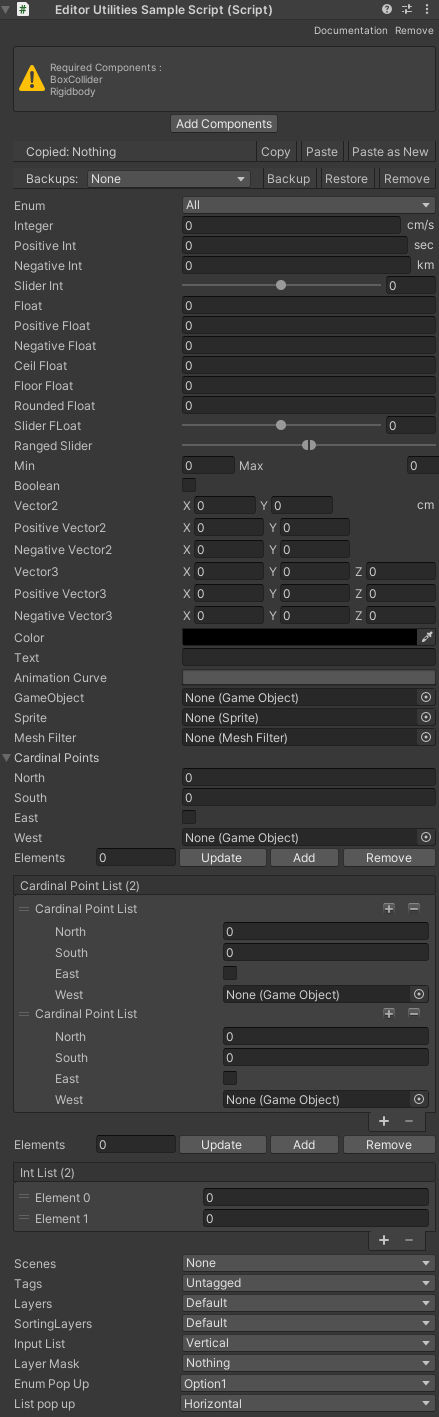
Compatible property types:
- Int
- Generic
- Positive
- Negative
- Slider
- Float
- Generic
- Positive
- Negative
- Ceil
- Floor
- Rounded
- Slider
- Slider Ranged
- Long
- Generic
- Positive
- Negative
- Double
- Generic
- Positive
- Negative
- Ceil
- Floor
- Rounded
- Boolean
- Vector 2, 3, 4
- Generic
- Positive
- Negative
- Color
- Enumeration
- Rect
- Text
- Animation curve
- Object <T>
- Fold Out
- List
- Values
- Classes
- Tags (From Tags and Layers settings)
- Layers (From Tags and Layers settings)
- Sorting Layers (From Tags and Layers settings)
- Inputs (From Input manager settings)
- Layer Mask
Use
To create a custom inspector you should create an editor script with this attributes:
- [CustomEditor(typeof(SampleScript))] – Assign the type of the class that the editor script will represent in the inspector, in this case: SampleScript.cs.
- [CanEditMultipleObjects] – Allow support multi-object editing.
- Must inherit from «UnityEditor.Editor».
Step 1
Create «SerializedProperty» variables in the editor script (SampleScriptEditor) that reference the variables of the target Class.
[CustomEditor(typeof(SampleScript))]
[CanEditMultipleObjects]
public class SampleScriptEditor : UnityEditor.Editor
{
    private SerializedProperty _int;
}
Step 2
Inside «OnEnable()» method to initialize the variables of «SerializedProperty» type. Adding as a parameter of «FindProperty(string)» method the name of the referenced variable in the target script.
[CustomEditor(typeof(SampleScript))]
[CanEditMultipleObjects]
public class SampleScriptEditor : UnityEditor.Editor
{
    private SerializedProperty _int;

    void OnEnable()
    {
         _int = serializedObject.FindProperty("integer");
    }
}
In this case, the variable «integer» from SampleScript it’s being linked to the «_int» variable.
Step 3
The method «OnInspectorGUI()» creates the new inspector, allows draw and place the properties in inspector panel. This method works like the «Update()» method, and it must be overrided to work correctly.
Accessing to the static class «EditorGUILayout» you can create any field in the inspector. In this case, the method «IntField()» will show our «_int» variable and will set «Integer» as its name.
[CustomEditor(typeof(SampleScript))]
[CanEditMultipleObjects]
public class SampleScriptEditor : UnityEditor.Editor
{
    private SerializedProperty _int;

    void OnEnable()
    {
         _int = serializedObject.FindProperty("integer");
    }

    public override void OnInspectorGUI()
    {
        _int = EditorGUILayout.IntField("Integer", _int);
    }
}
In the Editor Utilities you use the “CGFEditorUtilities.BuildInt()” method instead of “EditorGUILayout.IntField()” method. You can add a description as a method parameter to show a tooltip from inspector.
[CustomEditor(typeof(SampleScript))]
[CanEditMultipleObjects]
public class SampleScriptEditor : UnityEditor.Editor
{
    private SerializedProperty _int;

    void OnEnable()
    {
         _int = serializedObject.FindProperty("integer");
    }

    public override void OnInspectorGUI()
    {
        CGFEditorUtilities.BuildInt("Integer", "All integer values", _int);
    }
}
Step 4
In order to update the inspector fields and values you use the «Update()» method, and to save changes to the variables we must use «ApplyModifiedProperties()».
[CustomEditor(typeof(SampleScript))]
[CanEditMultipleObjects]
public class SampleScriptEditor : UnityEditor.Editor
{
    private SerializedProperty _int;

    void OnEnable()
    {
         _int = serializedObject.FindProperty("integer");
    }

    public override void OnInspectorGUI()
    {
        serializedObject.Update();
        CGFEditorUtilities.BuildInt("Integer", "All integer values", _int);
        serializedObject.ApplyModifiedProperties();
    }
}