

Files: CGFAnimationHierarchyEditorTool.cs
Path: «CGF/Editor/Tools»
Menu: «Window/Chloroplast Games Framework/Animation Hierarchy Editor Tool»
Asset Store
Description
Tool that allows change the sample rate from one or multiple animation clips.
Reference
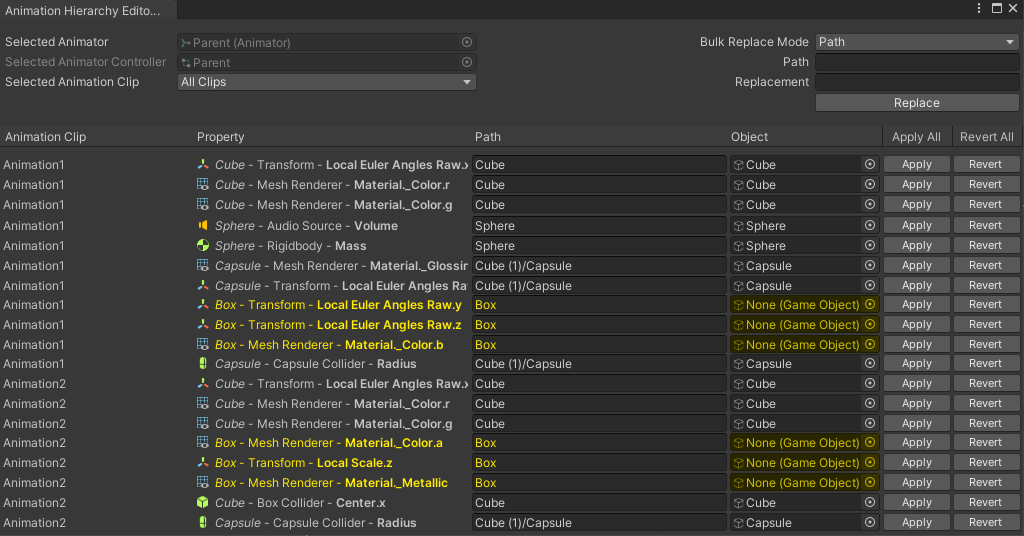
- Selected Animator – Selected Animator.
- Selected Animator Controller – Selected Animator Controller.
- Selected Animation Clip – Selected Animation Clip or Animation clips of the selected gameobject or Animator Controller. Select all animations clips or a individual clip.
- Mode – Bulk replace mode.
- Path – Text replacement mode.
- GameObject – Gameobject replacement mode.
- Path/GameObject – Original text or gameobject.
- Replacement – Text or gameobject replacement.
- Path – Hierarchy path of the animated gameobject.
- Object – Animated gameobject or prefab.
Use
Select a gameobject or prefab with a Animator or Animator Controller, a Animator Controller or a Animation Clip.
Then you can change the hierarchy path of the animation changing the string (Path) or changing the animated gameobject or prefab (Object) and press the Apply button or Apply All button to apply all the changes. To undo the change press the Revert button or Revert All button to undo all the changes.
If the selected gameobject or Animator Controller have multiple Animation Clips you can switch the current Animation Clip using the Selected Animation Clip drop down menu.
When some property becomes yellow means that the hierarchy path is incorrect because the referenced animated gameobject is missing.
You can replace the hierarchy path of multiple animations with the bulk replacement system.
You can replace affecting only one clip or all clips selecting the desired option with the Selected Animation Clip dropdown menu.