
Files: CGFCanvasSlideShowManager.cs
Path: "CGF/Systems/UI/SlideShow"
Description
Manager that allows the associated GameObject to manage opacity transitions of UI elements as if they were slides.
Reference
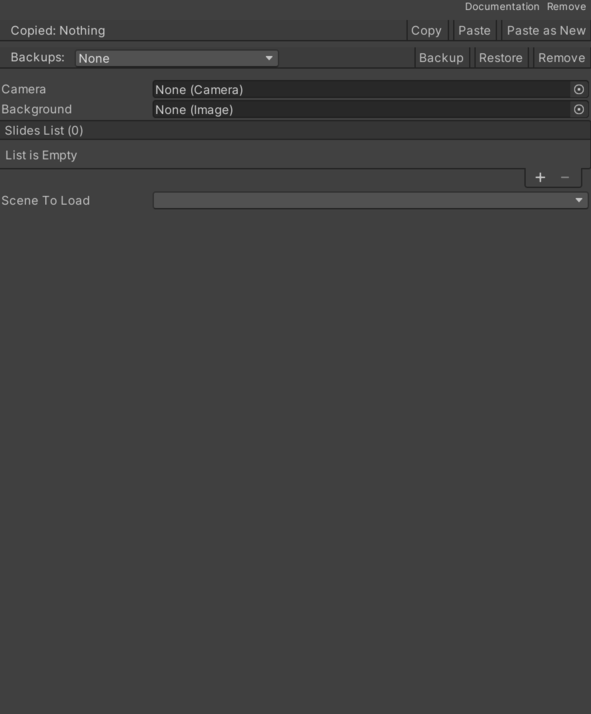
- Background – GameObject with an "image" component used as the background for all slides.
- Camera – Cached Camera reference used by this component. See Common Features / Camera.
- Key Set – List of keys and buttons that trigger slide skipping.
- Keys List – List of keyboard keys that trigger skip or omission.
- Number Of Touches Needed – Number of simultaneous touches required to jump or skip.
- Use Touches – Enables or disables skipping with a tap on the device screen.
- Scene To Load – Scene loaded when the slides finish.
- Slides List – List of slides.
- Background Color – Slide background color.
- Camera – Background color of the selected camera. See Common Features / Camera.
- Delay – Global initial delay.
- Delay Background – Initial slide background delay.
- Delay Slide – Initial slide delay.
- Duration – Slide visibility duration.
- Fade In Duration Background – Slide background fade-in duration.
- Fade In Duration Slide – Slide fade-in duration.
- Fade Out Duration Background – Slide background fade-out duration.
- Fade Out Duration Slide – Slide fade-out duration.
- Maskable Graphic – Text or image that forms the slide.
- Skippable – Enables or disables slide skipping.
Use
Add this component to the GameObject that should own the behavior.
Configure the inspector fields listed in Reference and assign the required scene or asset references before entering Play Mode.