
Files: CGFAnimationHierarchyEditorTool.cs
Path: "CGF/Editor/Tools"
Menu: "CGF/Animation/Animation Hierarchy Editor"
Description
Tool that allows change the path of hierarchy from a animation from an animation clip.
Reference
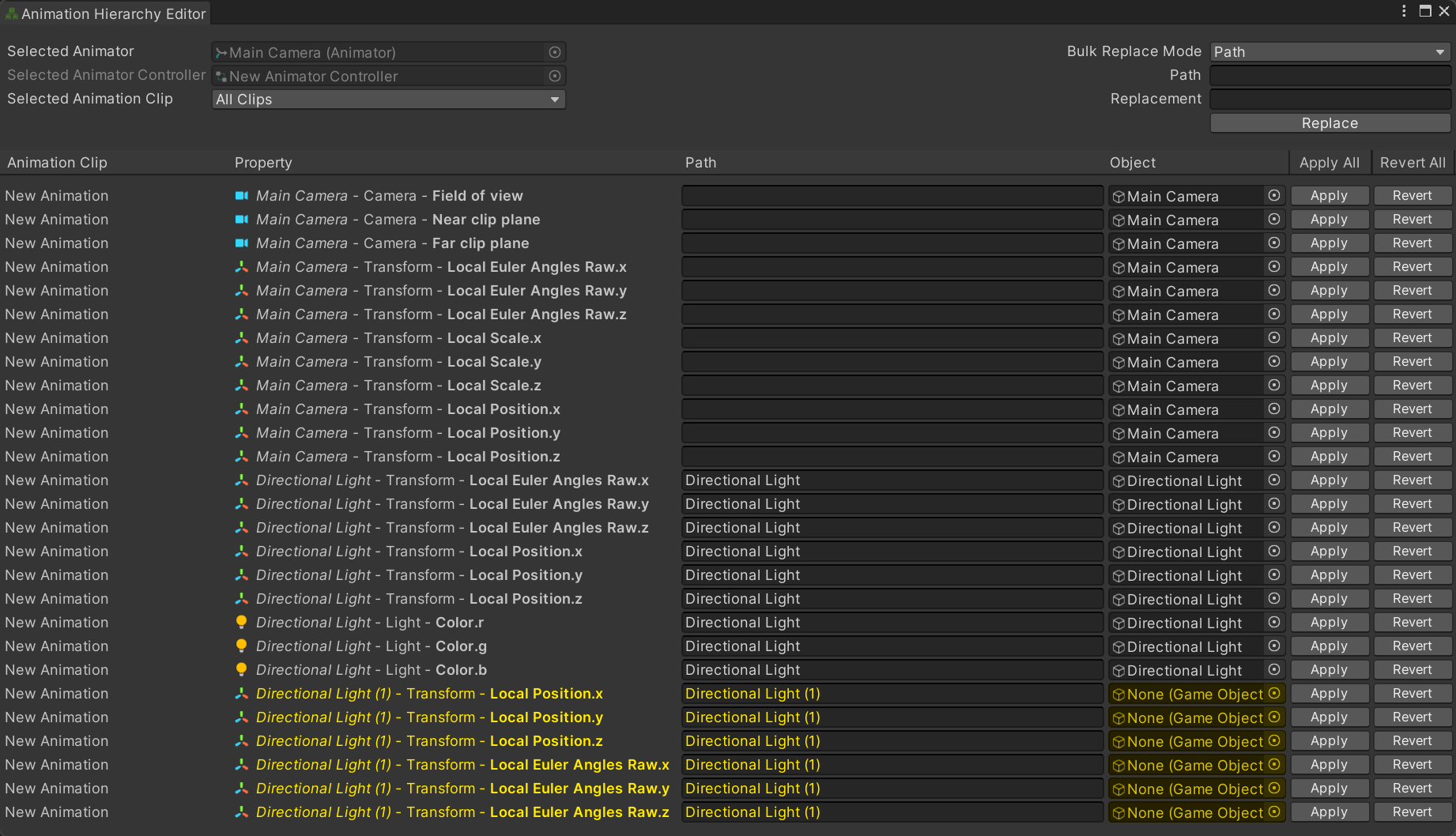
- Selected Animator – Animator component on the selected GameObject whose animation bindings are displayed below.
- Bulk Replace Mode – Choose whether the bulk replacement matches hierarchy path text or the path of a GameObject.
- Path – Available option.
- GameObject – Available option.
- Selected Animator Controller – Animator Controller assigned to the selected Animator. Its animation clips are available for exploration below.
- Path – Hierarchy path text to find in the displayed animation bindings.
- GameObject – GameObject whose hierarchy path should be replaced in matching animation bindings.
- Selected Animation Clip – Choose one animation clip to inspect, or All Clips to inspect every clip in the selected controller. Select a GameObject with an Animator and an Animator Controller to list its animation clips.
- Replacement – Hierarchy path text that replaces every match when Replace is pressed. GameObject whose hierarchy path replaces the matched path when Replace is pressed.
- Replace – Prepare path changes for every displayed binding that matches the configured path or GameObject.
- Apply All – Write every pending hierarchy-path change to the selected animation clips.
- Revert All – Restore every changed binding to its path from before the last apply operation.
- Apply – Write this hierarchy-path change to its animation clip.
- Revert – Restore this binding to its path from before the last apply operation.
Use
Open the tool from CGF/Animation/Animation Hierarchy Editor in the Unity editor.
Use the controls listed in Reference to configure the window workflow.