
Files: CGFScriptableObjectExplorerTool.cs
Path: "CGF/Editor/Tools/ScriptableObjectExplorer"
Menu: "CGF/Objects/Scriptable Objects Explorer"
Description
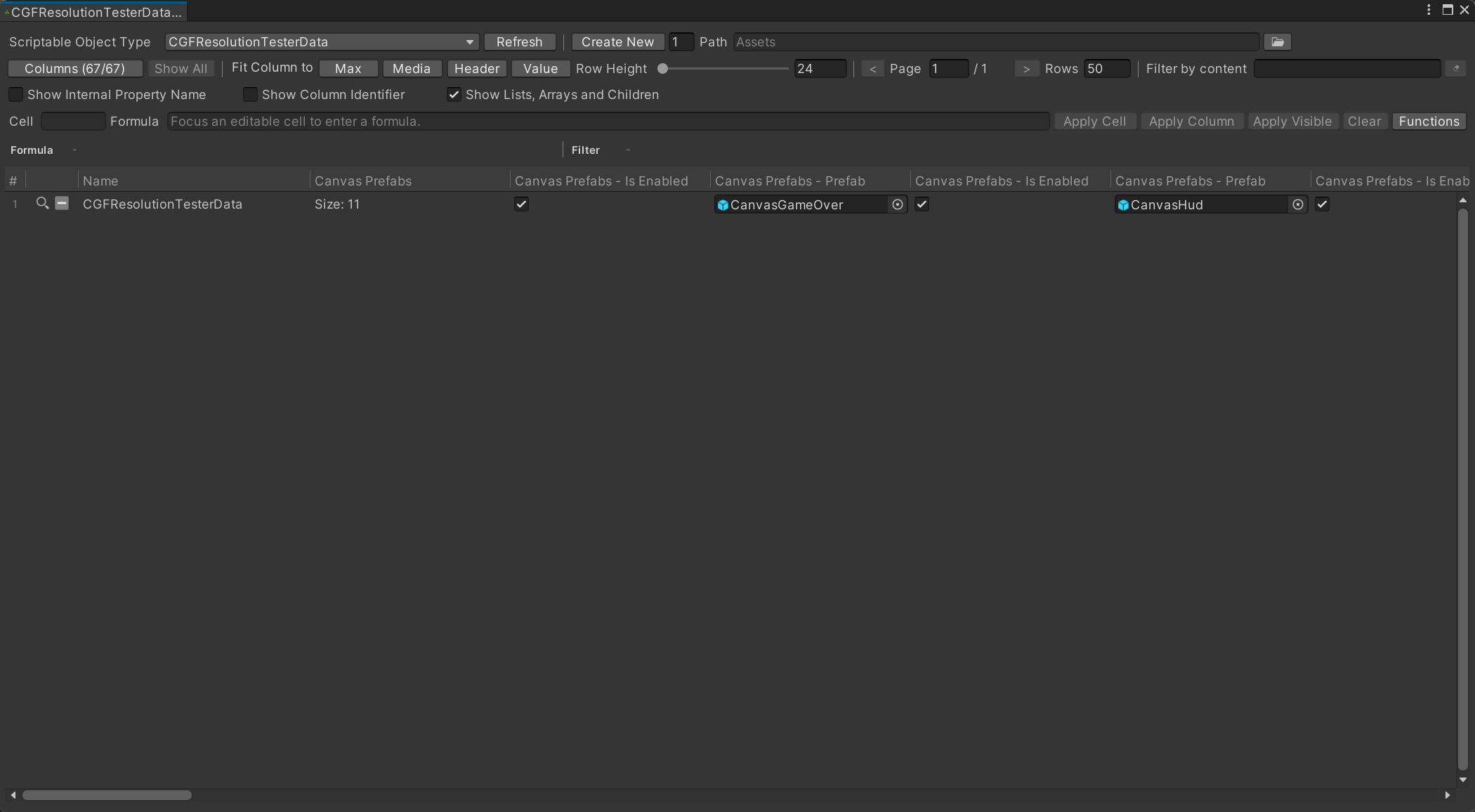
Window editor tool used to manage scriptable objects values.
Reference
- << – Move to the first item.
- < – Move to the previous item.
- > – Move to the next item.
- >> – Move to the last item.
- Refresh – Rescan loaded assemblies and refresh the list of ScriptableObject types available for browsing and creation.
- Create New – Create the requested number of assets using the selected ScriptableObject type in the destination folder below.
- Path – Project folder where new ScriptableObject assets will be created.
- Show All – Make every serialized property available as a table column.
- Max – Fit the active column width to its widest content, or all visible columns if there is no active column.
- Media – Fit the active column width to the average visible column width, or all visible columns if there is no active column.
- Header – Fit the active column width to its header width, or all visible columns if there is no active column.
- Value – Fit the active column width to its widest visible value, or all visible columns if there is no active column.
- Row Height – Height in pixels of each asset row in the data table.
- Show Internal Property Name – Shows the real SerializedProperty path in the table header so it can be used as a filter reference.
- Show Column Identifier – Shows the stable formula column ID in the table header, for example D – Difficulty.
- Show Lists, Arrays and Children – Shows lists, arrays, serialized classes and their children as regular table columns.
- Cell – Table coordinate of the cell that will receive the formula.
- Formula – Formula evaluated for the focused cell. Use the Functions menu to see supported operations and references. Focus an editable table cell before entering a formula.
- Apply Cell – Stores the formula and recalculates all formulas.
- Apply Column – Stores this formula in the focused column for every asset of the selected type.
- Apply Visible – Stores this formula in the focused column for the currently visible filtered page.
- Clear – Removes the formula from the focused cell without clearing its current value.
- Functions – Shows the supported formula functions.
- < – Previous page.
- > – Next page.
Use
Open the tool from CGF/Objects/Scriptable Objects Explorer in the Unity editor.
Use the controls listed in Reference to configure the window workflow.