
Files: CGFAudioManagerTool.cs
Path: "CGF/Editor/Tools/AudioManager"
Menu: "CGF/Content/Audio Manager"
Description
Audio system editor.
Reference
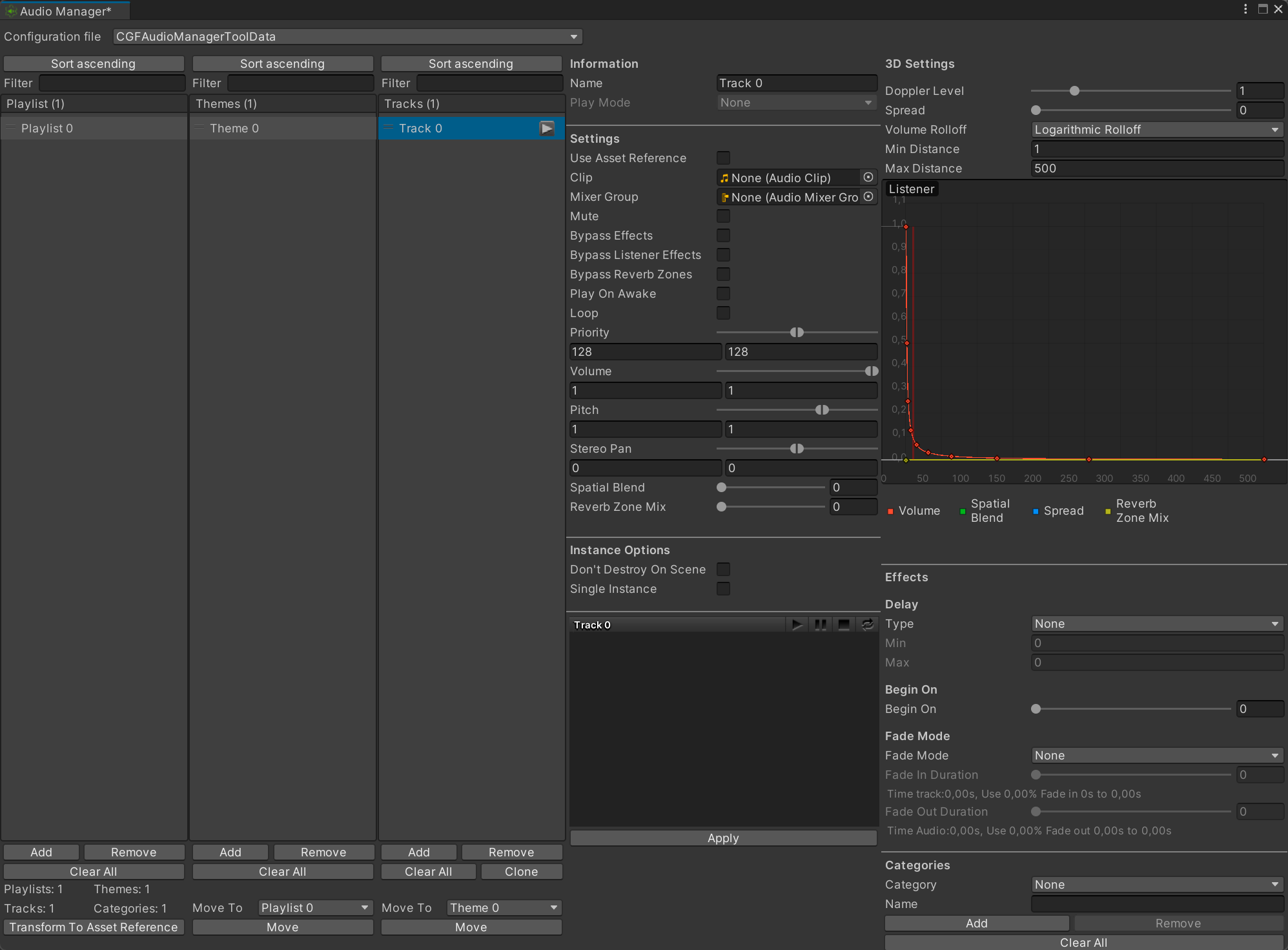
- Configuration file – Audio Playlist Manager asset whose playlists, themes and tracks are displayed in the editor.
- Filter – Show only playlists whose names contain this text.
- Add – Add a new playlist to the current Audio Playlist Manager.
- Remove – Remove the selected playlist and all of its themes and tracks.
- Clear All – Remove every playlist, theme and track from the current Audio Playlist Manager.
- Transform To Asset Reference – Convert every directly assigned AudioClip in this Audio Playlist Manager to an Addressables AssetReference. Existing asset references are preserved.
- Filter – Show only themes in the selected playlist whose names contain this text.
- Add – Add a new theme to the selected playlist.
- Remove – Remove the selected theme and all of its tracks from the current playlist.
- Clear All – Remove every theme and track from the selected playlist.
- Move – Move the selected theme, including all of its tracks, to the playlist chosen above.
- Filter – Show only tracks in the selected theme whose names contain this text.
- Add – Add a new track to the selected theme.
- Remove – Remove the selected track from the current theme.
- Clear All – Remove every track from the selected theme.
- Clone – Create a copy of the selected track in the current theme.
- Move – Move the selected track to the theme chosen above.
- Information
- Name – Identifier used to find and request this playlist, theme or track at runtime.
- Play Mode – How this playlist or theme chooses the next child item when audio is requested.
- Settings
- Use Asset Reference – Store and load the track clip through Unity Addressables instead of keeping a direct AudioClip reference.
- Clip – AudioClip played by this track. When Asset Reference is enabled, selecting a clip creates or updates its Addressables reference.
- Mixer Group – Audio Mixer Group that receives the output of audio instances created from this item.
- Mute – Create audio instances from this item with their output muted.
- Bypass Effects – Ignore effects applied directly to the AudioSource for audio instances created from this item.
- Bypass Listener Effects – Ignore effects applied to the AudioListener for audio instances created from this item.
- Bypass Reverb Zones – Prevent audio instances created from this item from being affected by Reverb Zones.
- Play On Awake – Start playback automatically when an audio instance created from this item becomes active.
- Loop – Restart the clip automatically when playback reaches its end.
- Priority – Range used to randomize the AudioSource priority for each instance. Lower values receive higher playback priority.
- Volume – Range used to randomize the AudioSource volume for each instance, from silent (0) to full volume (1).
- Pitch – Range used to randomize playback pitch for each instance. Values below 1 slow it down; values above 1 speed it up.
- Stereo Pan – Range used to randomize stereo placement for each instance, from left (-1) to right (1).
- Spatial Blend – Blend between fully 2D audio (0) and fully 3D spatial audio (1).
- Reverb Zone Mix – Amount of the AudioSource signal routed to Reverb Zones; 0 disables the send and 1 uses the normal level.
- Instance Options
- Don't Destroy On Scene – Keep audio instances created from this item alive when a new scene is loaded.
- Single Instance – Prevent a new instance of this item from starting while another instance of it is already playing.
- Information
- Name – Identifier used to find and request this playlist, theme or track at runtime.
- Play Mode – How this playlist or theme chooses the next child item when audio is requested.
- Settings
- Use Asset Reference – Store and load the track clip through Unity Addressables instead of keeping a direct AudioClip reference.
- Clip – AudioClip played by this track. When Asset Reference is enabled, selecting a clip creates or updates its Addressables reference.
- Mixer Group – Audio Mixer Group that receives the output of audio instances created from this item.
- Mute – Create audio instances from this item with their output muted.
- Bypass Effects – Ignore effects applied directly to the AudioSource for audio instances created from this item.
- Bypass Listener Effects – Ignore effects applied to the AudioListener for audio instances created from this item.
- Bypass Reverb Zones – Prevent audio instances created from this item from being affected by Reverb Zones.
- Play On Awake – Start playback automatically when an audio instance created from this item becomes active.
- Loop – Restart the clip automatically when playback reaches its end.
- Priority – Range used to randomize the AudioSource priority for each instance. Lower values receive higher playback priority.
- Volume – Range used to randomize the AudioSource volume for each instance, from silent (0) to full volume (1).
- Pitch – Range used to randomize playback pitch for each instance. Values below 1 slow it down; values above 1 speed it up.
- Stereo Pan – Range used to randomize stereo placement for each instance, from left (-1) to right (1).
- Spatial Blend – Blend between fully 2D audio (0) and fully 3D spatial audio (1).
- Reverb Zone Mix – Amount of the AudioSource signal routed to Reverb Zones; 0 disables the send and 1 uses the normal level.
- Instance Options
- Don't Destroy On Scene – Keep audio instances created from this item alive when a new scene is loaded.
- Single Instance – Prevent a new instance of this item from starting while another instance of it is already playing.
- Apply – Save all pending playlist, theme, track and category changes to the selected Audio Playlist Manager asset.
- 3D Settings
- 3D Settings
- Doppler Level – Range used to randomize the strength of the Doppler effect for each audio instance. Zero disables the effect.
- Spread – Range, in degrees, used to randomize how widely a 3D sound is distributed across the speaker space.
- Volume Rolloff – How the volume of a 3D sound decreases as the listener moves away from its source.
- Min Distance – Distance from the source within which a 3D sound remains at full volume.
- Max Distance – Distance from the source beyond which the selected rolloff no longer reduces the volume.
- Listener
- Effects
- Delay
- Type – Choose whether playback has no delay, a fixed delay, or a random delay between the minimum and maximum values.
- Min – Minimum playback delay, in seconds. Fixed intervals use this value as their only delay.
- Max – Maximum playback delay, in seconds, when the delay type uses a random interval.
- Begin On
- Begin On – Position, in seconds, at which playback begins inside the selected AudioClip.
- Fade Mode
- Fade Mode – Fade or crossfade behavior applied when this item starts and stops playing.
- Fade In Duration – Normalized portion of the clip used for its fade-in transition.
- Time track
- Fade Out Duration – Normalized portion of the clip used for its fade-out transition.
- Time Audio
- Categories
- Category – Playback category assigned to this playlist or theme, used to share selection state with other items in the same category.
- Name – Name used to create a new playback category.
- Add – Create a playback category with the name entered above.
- Remove – Delete the selected playback category and reset items that currently use it to None.
- Clear All – Delete every playback category from the current Audio Playlist Manager.
- Effects
- Delay
- Type – Choose whether playback has no delay, a fixed delay, or a random delay between the minimum and maximum values.
- Min – Minimum playback delay, in seconds. Fixed intervals use this value as their only delay.
- Max – Maximum playback delay, in seconds, when the delay type uses a random interval.
- Begin On
- Begin On – Position, in seconds, at which playback begins inside the selected AudioClip.
- Fade Mode
- Fade Mode – Fade or crossfade behavior applied when this item starts and stops playing.
- Fade In Duration – Normalized portion of the clip used for its fade-in transition.
- Time Audio: 0s, Use 0% Fade in 0s to 0s
- Fade Out Duration – Normalized portion of the clip used for its fade-out transition.
- Time Audio: 0s, Use 0% Fade out 0s to 0s
- Categories
- Category – Playback category assigned to this playlist or theme, used to share selection state with other items in the same category.
- Name – Name used to create a new playback category.
- Add – Create a playback category with the name entered above.
- Remove – Delete the playback category whose name is entered above.
- Clear All – Delete every playback category from the current Audio Playlist Manager.
Use
Open the tool from CGF/Content/Audio Manager in the Unity editor.
Use the controls listed in Reference to configure the window workflow.