
Files: CGFFootstepBehavior.cs
Path: "CGF/Systems/Audio"
Description
Behavior that allows the associated gameobject footstep sound effects manager.
Reference
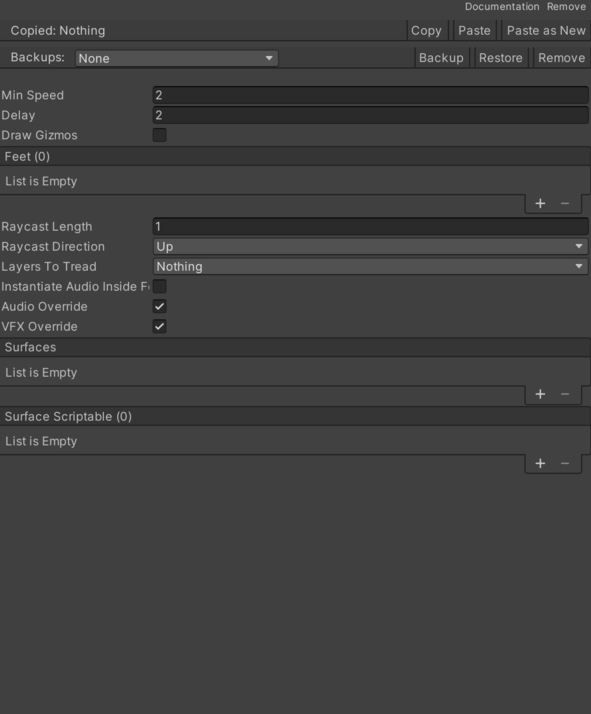
- Audio Override – Controls whether audio override is enabled.
- Delay – Delay duration in seconds.
- Draw Gizmos – Controls whether draw gizmos is enabled.
- Foots List – Inspector setting containing the foots entries processed by this component.
- Foot Object – Cached Transform reference used by this component.
- Gizmo Color – Color of the gizmo.
- Name – Text used to identify or display name.
- Instantiate Audio Inside Feet – Instantiate the special effect on the feetstep.
- Layers To Tread – Internal value used to configure layers To Tread.
- Min Speed – Movement speed used for min speed.
- Raycast Direction – Footsteps raycast direction. The default value is the green axis of space.
- Up – Raycast direction of the feet on the green axis of space.
- Down – Raycast direction of the feet on the negative green axis of space.
- Left – Raycast direction of the feet on the negative red axis of space.
- Right – Raycast direction of the feet on the red axis of space.
- Forward – Raycast direction of the feet on the blue axis of space.
- Back – Raycast direction of feet on the negative blue axis of space.
- Raycast Length – Footsteps raycast length.
- Reset On Stop – Enables or disables speed reset when the object stops.
- Speed – Movement rate used for speed.
- Surfaces List – List of surfaces to walk on.
- Name – Name of the surface.
- Sounds – List of sounds.
- Audio Effects – Inspector setting containing the audio Effects entries used by this component. See Common Features / Audio Effects.
- Instantiate Type – Cached CGFInstantiateType reference used by this component. See Common Features / Instantiate Type.
- Special Effect List – Instantiation of the CGFVFXInstantiatorClass class. See Common Features / Special Effect List.
- Tag – Tag name of the surface.
- Surfaces Scriptable List – List of surfaces to walk on.
- Vfx Override – Controls whether vfx override is enabled.
Use
Add this component to the GameObject that should own the behavior.
Configure the inspector fields listed in Reference and assign the required scene or asset references before entering Play Mode.