
Files: CGFSpriteAtlasManagerTool.cs
Path: "CGF/Editor/Tools/SpriteAtlasManager"
Menu: "CGF/2D /Sprite Atlas Manager"
Description
Sprite Atlas Manager tool, with this tool we can configure all the sprite atlas and variants that will be used in the project.
Reference
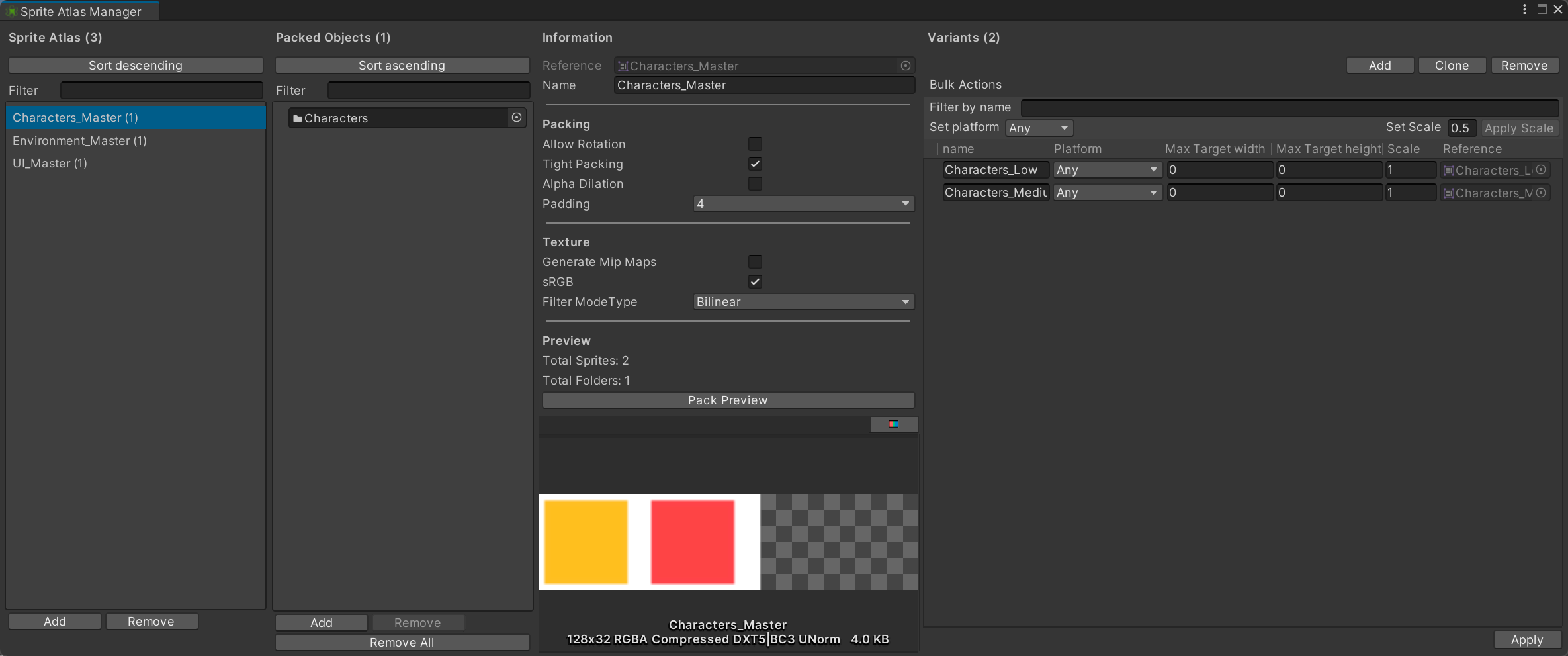
- Add – Create a new master Sprite Atlas asset and add it to the manager.
- Remove – Delete the selected master Sprite Atlas asset and its managed variants.
- Add – Add an empty packable entry to the selected atlas.
- Remove – Remove the selected sprite, texture or folder from this atlas.
- Remove All – Remove every packed object from the selected atlas.
- Packing
- Texture
- Filter ModeType – Texture filtering method assigned to every selected atlas.
- Preview
- Total Sprites
- Total Folders
- Pack Preview – Pack every selected atlas for the active build target.
- Packing
- Texture
- Filter ModeType – Texture filtering method used when sprites sample the generated atlas.
- Preview
- Total Sprites
- Total Folders
- Pack Preview – Pack the selected atlas for the active build target and refresh its visual preview.
- Add – Create a new variant of the selected master Sprite Atlas.
- Clone – Create independent copies of the selected atlas variants.
- Remove – Delete the selected Sprite Atlas variant assets.
- Filter by name – Show only variants whose name contains this text.
- Set platform – Target platform assigned immediately to every selected variant.
- Set Scale – Master-atlas scale factor to assign to every selected variant.
- Apply Scale – Assign the entered scale factor to every selected atlas variant.
- Apply – Save the edited master atlas and all of its variants, including packing, texture and packed-object settings.
- Reference – Asset referenced by this sprite atlas entry.
Use
Open the tool from CGF/2D /Sprite Atlas Manager in the Unity editor.
Use the controls listed in Reference to configure the window workflow.