
Files: CGFPNGCompressorTool.cs
Path: "CGF/Editor/Tools/PNGCompressor"
Menu: "CGF/Optimization and Analysis/PNG Compressor"
Description
A Tool to display settings to compress files from folder and files in project window
Reference
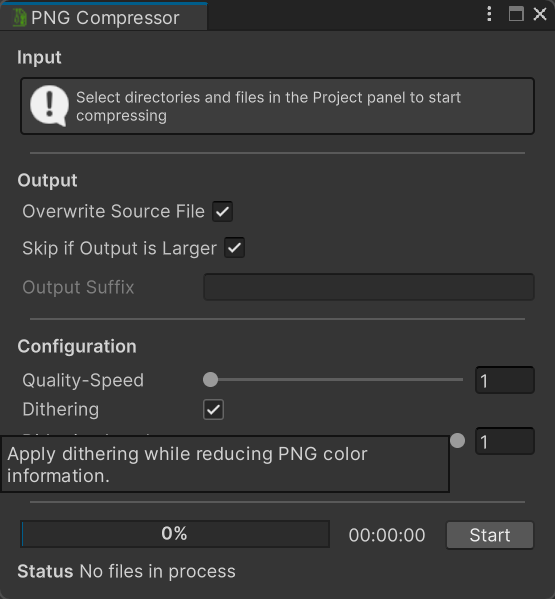
- Process Setup – a current configuration settings to handle the following process.
- Dithering – Apply a dithering pattern to hide defects generated by compression. Enable it for best result.
- Dithering Level – amount of dithering intensity, values from 0 to 1. 1 for best result.
- Output Suffix – Add a suffix to the compressed file. Not supported when the Overwrite source file option is enabled.
- Overwrite Source File – Overwrite the source file with the compressed file.
- Quality Speed – Quality level, values from 1 (Maximum quality but slow speed) to 11 (Minimum quality but fast speed).
- Skip If Output Is Larger – Do not save the compressed file if is larger that the source.
- Strip Metadata – Remove the metadata of the file, enabled by default in Mac.
- Process Status – a status of the current process running in background, related with.
- Compressed Reduction Size – size reduced from to.
- Compressed Reduction Size Percentage – Compressed reduction from to in percentage.
- Files Count – Count of files to being procesed.
- Files Size – size of files to being procesed.
- Path To Import Queue – List of required paths to load / import / refresh.
- Procesed Files Size – size of procesed files.
- Progress State Loading Bar – Current state of Loading progress.
- Stopwatch – a timer to monitor the current time state.
- Want Call Asset Database – a flag to indicate whether can call or not.
Use
Open the tool from CGF/Optimization and Analysis/PNG Compressor in the Unity editor.
Use the controls listed in Reference to configure the window workflow.