
Files: CGFAssetOptimizationAssistantEditorTool.cs
Path: "CGF/Editor/Tools/AssetOptimizationAssistant"
Menu: "CGF/Optimization and Analysis/Asset Optimization Assistant"
Description
Asset optimization assistant tool editor window.
Reference
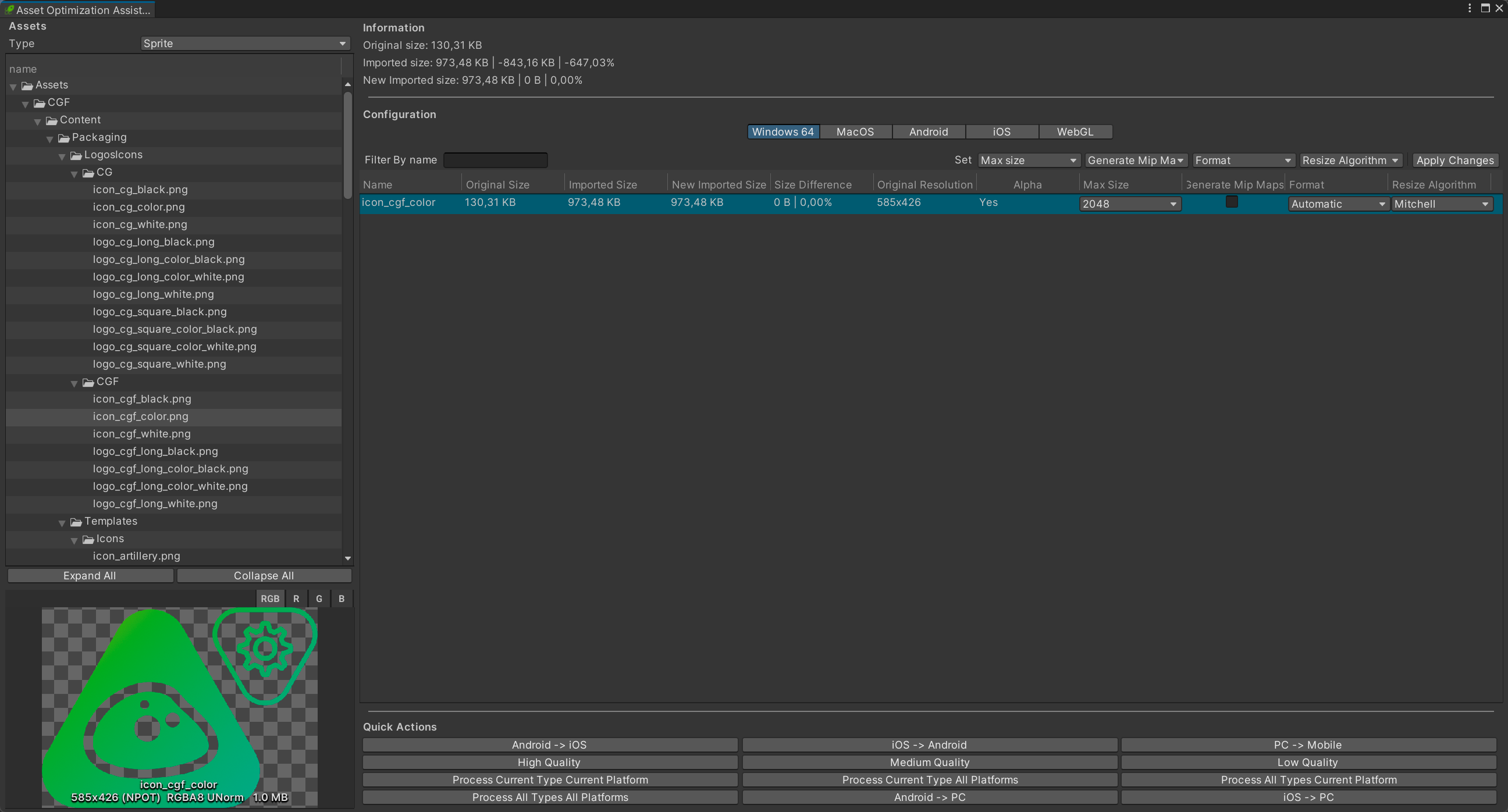
- Assets
- Type – Asset type displayed and processed by the optimization table.
- Expand All – Expand every folder in the asset tree.
- Collapse All – Collapse every folder in the asset tree.
- Information
- Original size
- Imported size
- New Imported size
- Configuration
- Filter By name – Show only assets of the current type whose name contains this text.
- Set – Set whether matching audio clips are converted to mono, or leave this setting unchanged. Set whether matching audio clips load on a background thread, or leave this setting unchanged. Set whether matching audio data is preloaded with its asset, or leave this setting unchanged. Load strategy assigned to matching audio clips, or the first option to leave it unchanged. Compression format assigned to matching audio clips, or the first option to leave it unchanged.
- Quality – Compression quality from 0 to 1 applied to matching audio clips. Leave empty to keep the current value.
- Apply Changes – Apply the chosen audio import settings to the selected rows, or every filtered row when nothing is selected.
- Apply Changes – Apply the chosen image import settings to the selected rows, or every filtered row when nothing is selected.
- Quick Actions
- Android -> iOS – Copy Android platform overrides from the selected or filtered assets to their iOS overrides.
- iOS -> Android – Copy iOS platform overrides from the selected or filtered assets to their Android overrides.
- PC -> Mobile – Copy Standalone platform overrides from the selected or filtered assets to both Android and iOS.
- High Quality – Apply the CGF high-quality texture or sprite-atlas preset to the selected or filtered assets.
- Medium Quality – Apply the CGF balanced texture or sprite-atlas preset to the selected or filtered assets.
- Low Quality – Apply the CGF memory-saving texture or sprite-atlas preset to the selected or filtered assets.
- Process Current Type Current Platform – Apply CGF optimization rules to the displayed asset type for the active build platform.
- Process Current Type All Platforms – Apply CGF optimization rules to the displayed asset type for every installed build platform.
- Process All Types Current Platform – Apply CGF optimization rules to audio, textures, sprites and atlases for the active build platform.
- Process All Types All Platforms – Apply CGF optimization rules to every supported asset type for every installed build platform.
- Android -> PC – Copy Android platform overrides from the selected or filtered assets to their Standalone overrides.
- iOS -> PC – Copy iOS platform overrides from the selected or filtered assets to their Standalone overrides.
Use
Open the tool from CGF/Optimization and Analysis/Asset Optimization Assistant in the Unity editor.
Use the controls listed in Reference to configure the window workflow.