
Files: CGFTweenAnimationTimelineEditorTool.cs
Path: "CGF/Editor/Tools/TweenAnimation"
Menu: "CGF/Animation/Tween Animation Timeline"
Description
Editor window that provides timeline authoring and scene preview for CGF tween animation clips.
Reference
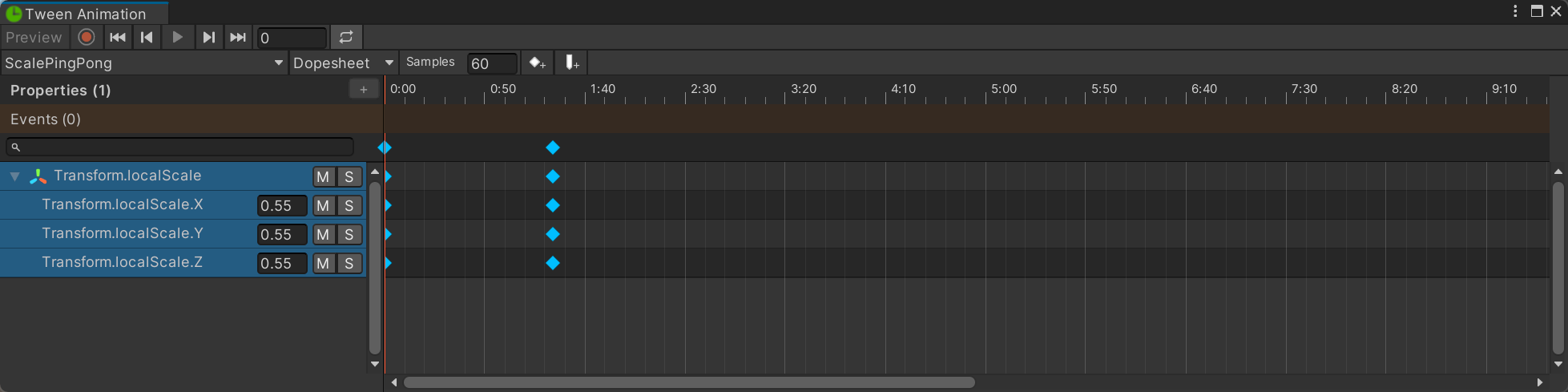
- No clips – The current source does not provide any Tween Animation Clips that can be edited.
- Samples – Number of animation frames represented by one second.
- Properties
- Events
- M – Mute every animated property in this group.
- S – Solo every animated property in this group.
- ✓ – Apply the edited full binding path to this animated property.
- × – Discard the binding path edit and keep the current property binding.
- M – Mute this animated property.
- S – Solo this animated property.
- M – Mute this animated property channel.
- S – Solo this animated property channel.
- Select a numeric property track to display its curves.
- This property is discrete and is edited in Dopesheet view.
- Name – Display name of the property group.
- Highlight – Color used to identify this property group in the hierarchy and timeline.
- Group – Existing property group to assign to the selected tracks, or an option to create a new group or leave them ungrouped.
- Name – Display name of the new property group.
- Highlight – Color used to identify the new property group in the hierarchy and timeline.
- Highlight – Current highlight color of the selected property group.
- Cancel – Close this popup without changing group assignments or appearance.
- Apply – Apply the selected group assignment, name and highlight color to the affected animation properties.
- Preview – Evaluate the displayed clip on the selected scene animator.
- Copy – Copy the selected keys so they can be pasted at another time or track.
- Duplicate – Create copies of the selected keys while preserving their relative time offsets.
- Delete – Delete every selected key from its animation track.
- Delete – Delete the selected animation event from this clip.
- Name – Animation event name sent to listeners when the playhead reaches this event.
- Time – Time, in seconds, at which this animation event is invoked.
- Time – Time, in seconds, of this key on the clip timeline.
- Ease – Easing function used to shape interpolation from this key to the next key.
- Ease Preset – Choose a commonly used easing function and apply it to the selected key segment.
- Custom Ease – Custom curve that maps normalized segment time to interpolation progress.
- Move Time – Time offset, in seconds, added to every selected key while preserving their spacing.
- Apply – Move every selected key by the time offset entered on the left.
- Ease – Easing function applied to every selected tween segment.
- Ease Preset – Choose a commonly used easing function and apply it to every selected tween segment.
- Value – Float value written to the animated property at this key.
- Value – Double value written to the animated property at this key.
- Value – Integer value written to the animated property at this key.
- Value – Long integer value written to the animated property at this key.
- Value – Boolean value written to the animated property at this key.
- Value – Vector2 value written to the animated property at this key.
- Value – Vector3 value written to the animated property at this key.
- Value – Vector4 value written to the animated property at this key.
- Value – Euler rotation written to the animated property at this key.
- Value – Color value written to the animated property at this key.
- Value – Rectangle value written to the animated property at this key.
- Value – String value written to the animated property at this key.
- Value – Enumeration value written to the animated property at this key.
- Value – Stored integer value used when the bound enumeration type cannot be resolved.
- + – Add an animated property.
- ✓ – Apply the edited display name to this property group.
- × – Discard the group name edit and keep the current display name.
Use
Open the tool from CGF/Animation/Tween Animation Timeline in the Unity editor.
Use the controls listed in Reference to configure the window workflow.