
Description
GUI for pngquant, a command-line utility and a library for lossy compression of PNG images.
Reference
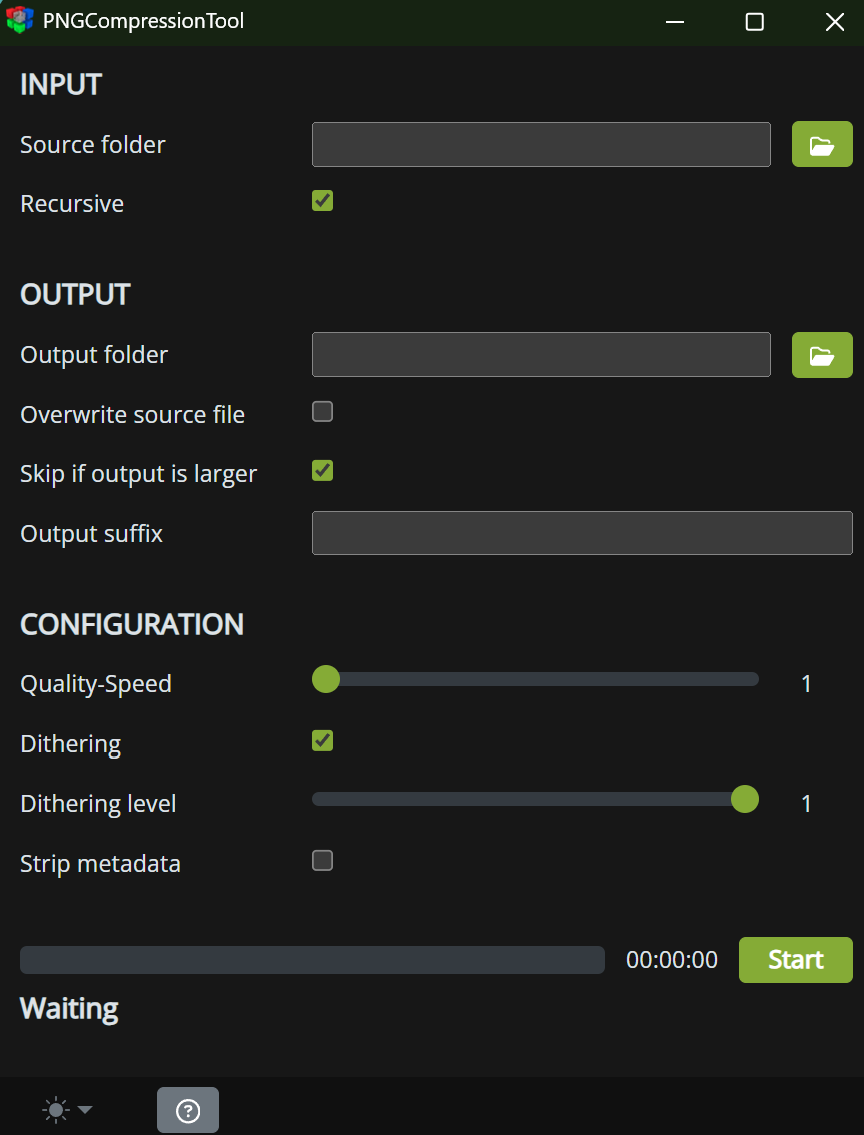
- Destination – Path of the destination folder of the exported PDF file. It is automatically updated with the path of the active document. It can be edited from the input field or using the folder selection window.
- Input – Input settings.
- Source folder – Path of the folder of the source PNG files.
- Recursive – Compressing process affects all files of the child folders.
- Output – Output settings.
- Output folder – Path of the folder of the output PNG files.
- Overwrite source file – Overwrite the source file with the compressed file.
- Skip if output is larger – Do not save the compressed file if is larger that the source.
- Output suffix – Add a suffix to the compressed file. Not supported when the Overwrite source file option is enabled.
- Configuration – Configuration settings.
- Quality-Speed – Quality level, values from 1 (Maximum quality but slow speed) to 11 (Minimum quality but fast speed).
- Dithering – Apply a dithering pattern to hide defects generated by compression. Enable it for best result.
- Dithering level – Amount of dithering intensity, values from 0 to 1. 1 for best result.
- Strip metadata – Remove the metadata of the file, enabled by default in Mac.
- Start/Cancel – Start or cancel the compressing progress.
- Help – Open the CG Standalone Tools online manual.
Use
- Select the source folder.
- Select the output folder or overwrite the source files.
- Set the configuration options. For best results 1 for Quality-Speed and Dithering level.
- Press Start button.
- After finish he compressing process it will show the results of the process: Files processed, original size, compressed size, size difference and compression ratio.