
Menu: “Window/Extensions/CG PsT – Onion Skin”
Description
Panel that allows enable and disable an onion skin effect in a frame animation.
Reference
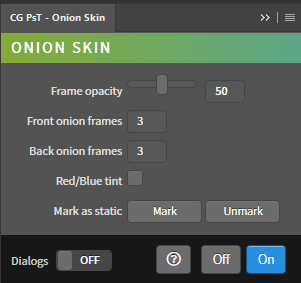
- Frame opacity – Determines the opacity of the onion skin frame next to or before the current frame. All other onion skin frames will have a lower opacity.
- Front onion frames – Determines the number of onion skin frames following the current frame that will be visible.
- Back onion frames – Determines the number of onion skin frames prior to the current frame that will be visible.
- Red/Blue tint – Tint the onion skin frames before the current frame in red and the onion skin frames after the current frame in blue.
- Mark as static – Layers marked as static will not be taken into account when turning onion skin on or off.
- Mark – Marks as static the selected layers.
- Unmark – Unmark the selected layers.
- Dialogs – Show dialog messages with useful information during the execution of the panel.
- Help – Open the CG Ps Tools online manual.
- Off – Disables the onion skin.
- On – Enables the onion skin.
Use
Open a document and disable the «New layers visible in all frames»
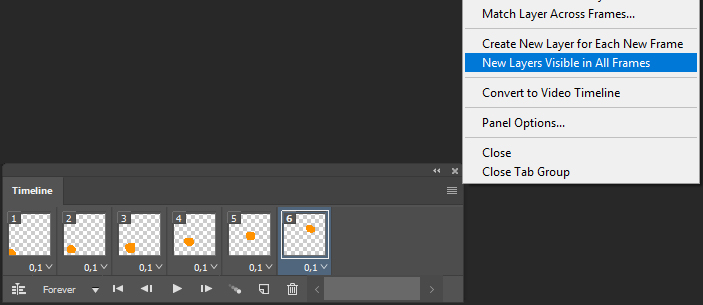
If it is a new document, the frames must be created first. In addition, it is very important that the layers of the document have a certain hierarchy. At the root of the document a group must be created for each frame and within each group create the layers that will be visible in those frames. You should not create new frames or modify the structure of the root groups if the onion skin has been activated, first you must deactivate the onion skin.
In the case of an old document, the hierarchy of the layers must be ordered as indicated before activating the onion skin.
Then, for each frame, you have to hide the groups (only the groups, not the inner layers) that do not have to be seen in the frame. It is important that the groups do not have «Styles» because it would conflict with the functionality of «Re /Blue tint».
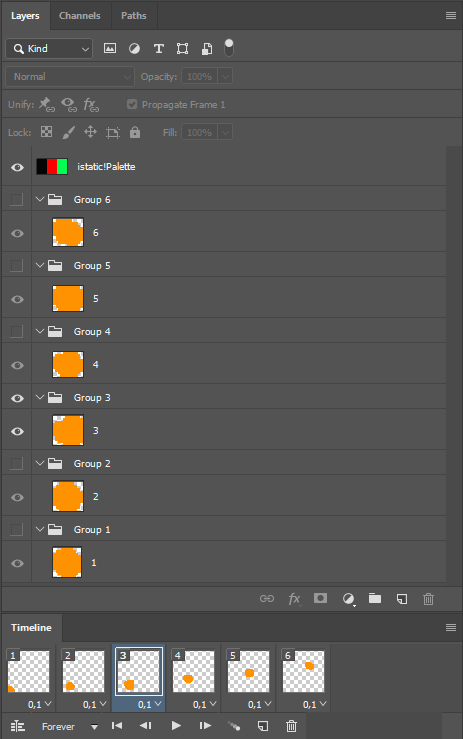
Layers or groups that will be visible in all frames can be created at the root of the document if they are marked with the «Mark» button. The marked layers will not be included in the onion skin and can be created while the onion skin is active.
Finally, configure the panel properties and press the «On» button.
To deactivate the onion skin, you should not use the «Undo» command, you should use the «Off» button.