
Menu: “Window/Extensions/CG PsT – Spritesheet Generator»
Description
Tool that allows change the settings of a all colliders from a GameObject or prefab.
Reference
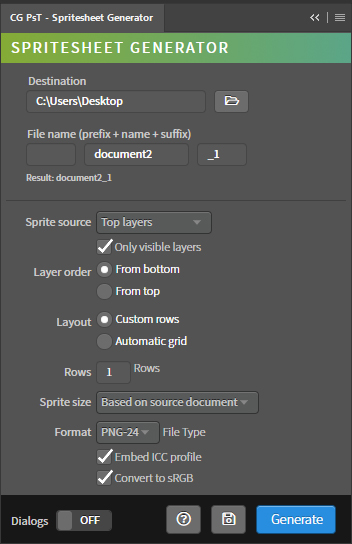
- Destination – Path of the destination folder of the spritesheet. It is automatically updated with the path of the active document. It can be edited from the input field or using the folder selection window.
- Fila name – Input fields to enter the name of the spritesheet file.
- Prefix – Prefix of the spritesheet name.
- Name – Name of the spritesheet file. It is automatically updated with the name of the active document.
- Suffix – Suffix of the spritesheet nombre.
- Custom name – Generation of the name of the exported files from a custom name.
- As document name – Generation of the name of the exported files from the name of the source document.
- Final result – Shows the final name of the spritesheet.
- Sprite source – Method to obtain sprites.
- Top layers – Method to obtain sprites from the layers in the root of the document.
- Animaton frames – Method to obtain sprites from the animation frames of the document.
- Selected layers – Method to obtain sprites from the selected layers.
- Only visible layers – Determines if invisible layers in the document are used as sprites.
- Layer order – Sprite ordering mode.
- From bottom – Sort the sprites in the spritesheet based on the ascending order of the layer list.
- From top – Sort the sprites in the spritesheet based on the descending order of the layer list.
- Layout – Sprite layout mode.
- Custom rows – Custom layout of sprites, allows you to enter the number of rows in the spritesheet. The number of columns is calculated based on the number of sprites.
- Automatic grid – Automatic layout of sprites, automatically calculates the number of rows and columns in the spritesheet based on the number of sprites.
- Rows – Number of rows in the spritesheet. Only available when the Custom rows feature of the Layout property is selected.
- Sprite size – List of methods to set the size of the sprites in the spritesheet.
- Based on source document – Sets the size of the sprites of the spritesheet to the same size as the source file.
- Trim transparent pixels – Sets the size of the sprites of the spritesheet after trimming the transparent pixels around each layer, taking into account the size of all layers at once.
- Format – List of saving formats in the spritesheet.
- PNG-24 – Saves the spritesheet in PNG-24 format. Preserves the transparent background of the spritesheet.
- JPEG – Saves the spritesheet in JPEG format. Set the background of the spritesheet to white if it is transparent.
- Embed ICC profile – Save the color profile to the spritesheet.
- Convert to sRGB – Convert the color space of the spritesheet to sRGB.
- File scale – Rescales the document.
- Resaple Method Nearest Neightbor – Uses that resample method when rescale the document.
- Dialogs – Show dialog messages with useful information during the execution of the panel.
- Help – Open the CG Ps Tools online manual.
- Save – Save the active document.
- Generate – Run the main behavior of the panel.
Use
Open a document, then set the generation properties and press Generate.
It is necessary that the active document only contains layers, it cannot contain groups.